Mail Access Protocols are important communication protocols used in email systems to retrieve and manage emails from mail servers. These protocols help users access their emails through computers, smartphones, tablets, and other devices connected to the internet. Moreover, mail access protocols provide organized communication by allowing users to read, download, store, and manage messages efficiently. Therefore, they play a major role in modern email communication systems.
Today, email services such as Gmail, Outlook, and Yahoo Mail depend on Mail Access Protocols for smooth email retrieval and synchronization. These protocols work together with SMTP to complete the email communication process. Furthermore, they help users access messages from anywhere at any time using different devices. Hence, Mail Access Protocols are essential for reliable and user-friendly email services.
What is Mail Access Protocol?
A Mail Access Protocol is a communication protocol that allows users to retrieve, access, manage, and store emails from a mail server. It acts as an interface between the receiver’s email application and the mail server, enabling users to view and manage incoming email messages over a network.
When someone sends an email, the message is first transferred to the recipient’s mail server using an email transfer protocol such as SMTP. After the message reaches the mail server, the receiver uses a Mail Access Protocol to access and retrieve it through an email application.
Mail Access Protocols make email communication convenient because users do not need to access the mail server directly. Instead, they can use email applications such as Gmail, Microsoft Outlook, and Mozilla Thunderbird to read, organize, download, and manage their messages.
The commonly used Mail Access Protocols are Post Office Protocol Version 3 (POP3) and Internet Message Access Protocol (IMAP). POP3 mainly downloads emails from the mail server to the user’s device, whereas IMAP allows users to access and synchronize emails across multiple devices while keeping messages on the server.
Functions of Mail Access Protocol
Mail Access Protocols perform several important functions that help users access and manage their email messages efficiently.
1. Email Retrieval: Mail Access Protocols allow users to retrieve incoming email messages from a mail server. When a user opens an email application, the protocol establishes communication with the mail server and makes the available messages accessible. For example, a user can open Gmail or Outlook to view emails received from other people.
2. Email Management: They help users manage their mailbox by allowing them to organize messages into folders, mark emails as read or unread, delete unwanted messages, and search for important information. These features make it easier to maintain an organized inbox and manage a large number of email messages.
3. Access Through Email Applications: Mail Access Protocols allow users to access their emails through different email applications without communicating directly with the mail server. Applications such as Gmail, Microsoft Outlook, and Mozilla Thunderbird provide a user-friendly interface for reading, sending, and managing emails.
4. Support for POP3 and IMAP: Mail Access Protocols use protocols such as POP3 and IMAP to retrieve email messages from mail servers. POP3 generally downloads messages to a local device, while IMAP keeps messages on the server and synchronizes mailbox changes across connected devices. Therefore, users can choose an appropriate method based on their email access requirements.
5. Multi-Device Email Access and Synchronization: Mail Access Protocols, particularly IMAP, allow users to access the same mailbox from multiple devices, such as smartphones, laptops, tablets, and desktop computers. Changes made on one device, such as reading, deleting, or moving an email, can be reflected on other connected devices. This helps users maintain consistent email information across different platforms.
6. Email Storage: They help users access emails stored on the mail server or download them to their local devices, depending on the protocol being used. IMAP generally keeps messages on the server, whereas POP3 can download messages for local storage. This provides flexibility in how users store and access their email messages.
7. Mailbox Synchronization: They help maintain updated mailbox information between the email application and the mail server. For example, when a user marks an email as read using a smartphone, IMAP can synchronize that change so that the same email also appears as read when accessed from a laptop.
In this way, Mail Access Protocols make it easier to retrieve, organize, store, and access email messages while providing a convenient email management experience.
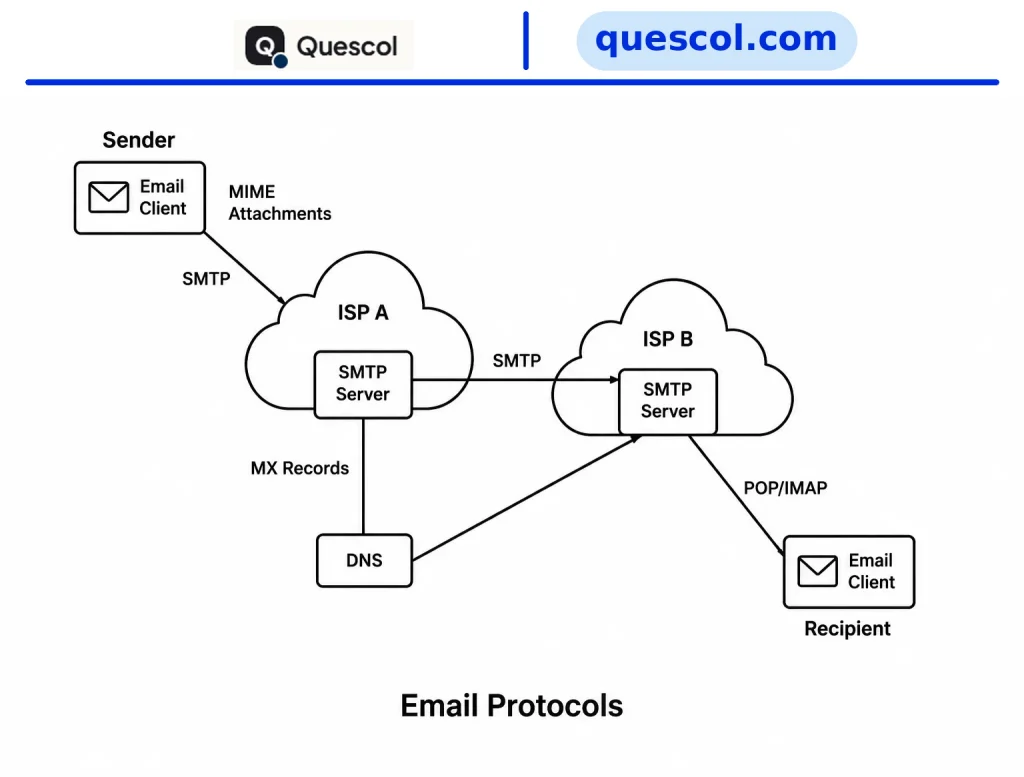
Figure: Email Protocol
Types of Mail Access Protocols
Mail Access Protocols are mainly classified into two types: POP3 (Post Office Protocol Version 3) and IMAP (Internet Message Access Protocol). Both protocols allow users to retrieve and access incoming emails from a mail server. However, they differ in how they download, store, synchronize, and manage email messages.
1. POP3 (Post Office Protocol Version 3)
POP3 is an email retrieval protocol that allows users to download incoming messages from a mail server to their local device, such as a computer or mobile phone. Once downloaded, emails are generally stored locally and may be removed from the server, depending on the client settings.
2. IMAP (Internet Message Access Protocol)
IMAP is an email access protocol that allows users to view and manage emails directly on the mail server. Instead of downloading and storing all messages locally, it keeps emails on the server and synchronizes changes across multiple devices.
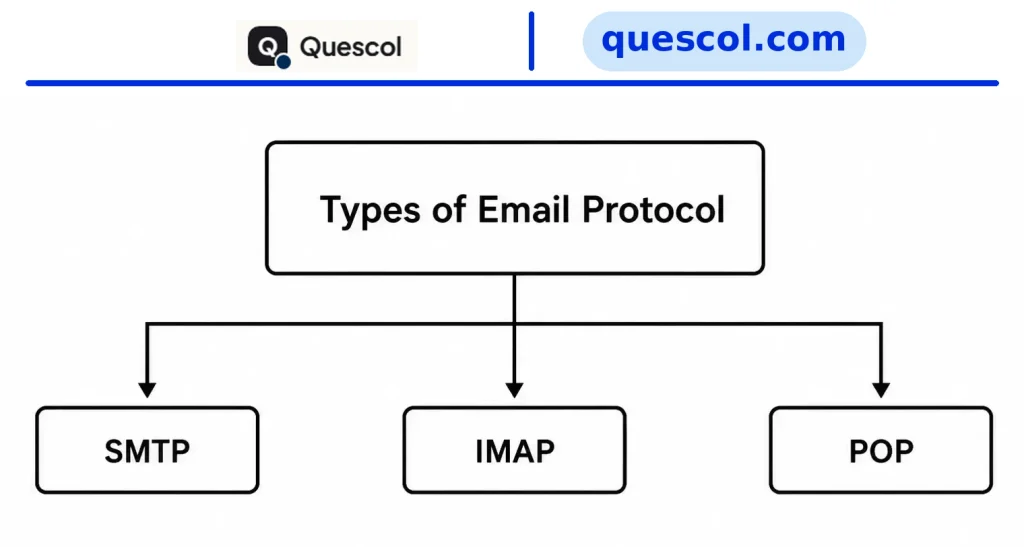
Figure: Types of Email Protocol
1. POP3 (Post Office Protocol Version 3)
POP3 is a Mail Access Protocol used to download emails from the mail server to the user’s device. Once the emails are downloaded, they are usually removed from the server. Moreover, POP3 allows users to access emails offline after downloading them. Therefore, POP3 is suitable for users who mainly use one device for email access.
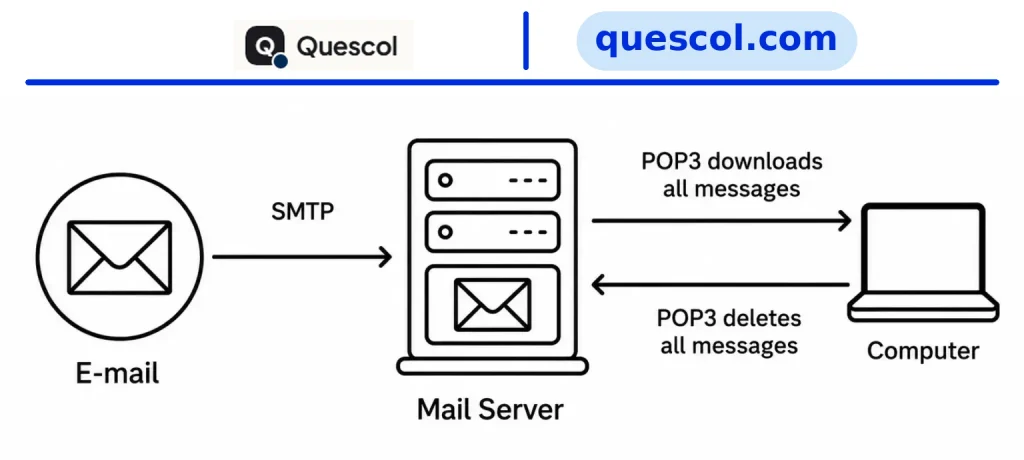
Figure: POP3 (Post Office Protocol)
Features of POP3 (Post Office Protocol Version 3)
POP3 provides several features that help users retrieve and access incoming email messages from a mail server. It mainly focuses on downloading emails and storing them on the user’s local device.
1. Downloads Emails to the Local Device: POP3 retrieves incoming email messages from the mail server and downloads them to the user’s computer, laptop, or smartphone. This allows users to store and access their messages locally without repeatedly connecting to the mail server.
2. Supports Offline Email Reading: Once emails are downloaded to the local device, users can read previously downloaded messages without an active Internet connection. This feature is useful for people who want to access their emails while travelling or working in areas with limited Internet connectivity.
3. Removes Emails from the Server After Download: POP3 can delete downloaded emails from the mail server after successful retrieval, depending on the email application’s configuration. This helps reduce server storage usage. However, users can also configure POP3 to leave copies of downloaded emails on the server.
4. Uses TCP Port 110: POP3 uses TCP port 110 for standard, unencrypted communication between the email application and the mail server. For secure communication using POP3 over implicit TLS, TCP port 995 is commonly used. This helps protect email retrieval communication from unauthorized access.
Advantages of POP3
POP3 offers several advantages that make it useful for downloading and managing emails on local devices.
1. Easy and Simple to Use: POP3 provides a straightforward method of retrieving emails from a mail server. Its simple working process makes it easy to configure and use with different email applications.
2. Supports Offline Access to Emails: POP3 downloads email messages to the local device, allowing users to read previously downloaded messages without an Internet connection. This is particularly useful when network connectivity is unavailable.
3. Reduces Server Storage Usage: POP3 can remove downloaded emails from the mail server after successful retrieval. As a result, it reduces the amount of storage space required on the server.
4. Faster Access After Download: Once emails are stored locally, users can open and read them directly from their devices without downloading the message content again from the server. This can provide faster access to previously downloaded emails.
5. Suitable for Single-Device Access: POP3 is useful for users who mainly access their email accounts from one device. It allows them to maintain a local collection of downloaded email messages.
Disadvantages of POP3
Although POP3 is useful for retrieving and storing emails locally, it has some limitations that can affect email management.
1. Limited Synchronization Across Multiple Devices: POP3 does not provide full mailbox synchronization between multiple devices. For example, if a user reads or deletes an email on a computer, the same change may not be reflected on a smartphone. This can make managing emails across different devices difficult.
2. Risk of Email Loss: When POP3 is configured to delete messages from the server after downloading them, the emails may become unavailable if the local device is damaged, lost, or experiences a storage failure. Therefore, users may need to maintain separate backups to protect important messages.
3. Limited Mailbox Management Features: POP3 mainly focuses on downloading emails rather than managing the mailbox directly on the server. Features such as synchronized folders, message status updates, and server-side email organization are limited compared with IMAP.
4. Dependence on Local Storage: Since POP3 stores downloaded emails on the user’s device, it requires sufficient local storage space. If the device runs out of storage, downloading and maintaining additional email messages may become difficult.
5. Difficult Email Management: When users access the same account from multiple devices, separate copies of emails and differences in mailbox status can create confusion. This makes POP3 less convenient for users who frequently switch between devices.
Applications of POP3
POP3 is commonly used in situations where users prefer downloading emails and storing them on their local devices rather than accessing them continuously from a mail server.
1. Personal Email Systems: POP3 is used in personal email systems where individuals want to download and store their incoming messages on computers or laptops. It provides a simple way to retrieve and access personal email communications.
2. Single-Device Email Access: It is suitable for users who mainly access their email accounts from one device. Since emails are downloaded locally, users can manage their messages without requiring continuous access to the mail server.
3. Offline Email Management: POP3 is useful for users who need to read previously downloaded emails without an Internet connection. For example, users can access stored messages while travelling or working in locations with poor network connectivity.
4. Small Business Communication: Small businesses may use POP3 to retrieve and store business emails on office computers. It allows employees to download incoming messages and maintain local copies for their communication requirements.
5. Local Email Archiving: POP3 can be used to download and maintain local copies of email messages. This is helpful for users who want to store older emails on their computers for future reference, provided they maintain suitable backups.
2. IMAP (Internet Message Access Protocol)
IMAP is a Mail Access Protocol that allows users to access emails directly from the mail server without permanently downloading them. Emails remain stored on the server until the user deletes them. Furthermore, IMAP supports synchronization across multiple devices such as laptops, smartphones, and tablets. Hence, IMAP is widely used in modern cloud-based email systems.
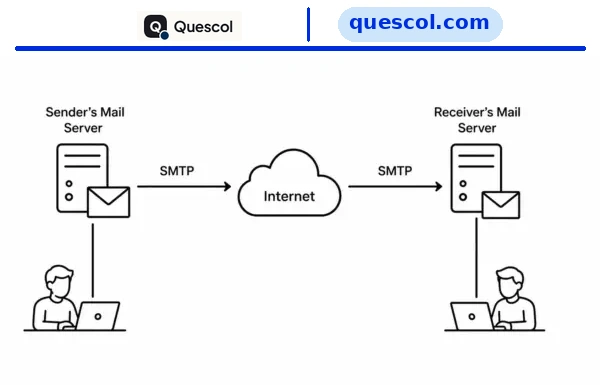
Figure: IMAP (Internet Message Access Protocol)
Features of IMAP (Internet Message Access Protocol)
IMAP provides several features that allow users to access, retrieve, organize, and manage email messages directly from a mail server. Unlike POP3, IMAP generally keeps emails stored on the server and synchronizes mailbox information across multiple connected devices.
1. Stores Emails on the Server: IMAP generally stores email messages on the mail server instead of downloading and removing them from the server. This allows users to access the same email messages from different devices, such as smartphones, laptops, and desktop computers.
2. Supports Multi-Device Synchronization: IMAP synchronizes email messages and mailbox changes across multiple devices connected to the same email account. For example, when a user reads, deletes, or moves an email on a smartphone, the same changes can be reflected on a laptop or tablet.
3. Allows Remote Mailbox Management: IMAP allows users to manage their mailboxes directly on the mail server through an email application. Users can create folders, move emails, delete unwanted messages, mark emails as read or unread, and organize their inbox without maintaining separate mailbox copies on each device.
4. Uses TCP Port 143: IMAP uses TCP port 143 for standard, unencrypted communication between an email application and a mail server. For secure communication using implicit TLS, IMAP commonly uses TCP port 993. These ports help establish communication for retrieving and managing email messages.
5. Supports Selective Email Retrieval: IMAP allows users to retrieve only the required parts of an email, such as message headers or selected message content, without downloading every message completely. This helps save bandwidth and makes email access more efficient.
Advantages of IMAP
IMAP offers several advantages that make it suitable for users who need flexible email access and efficient mailbox management.
1. Access Emails from Multiple Devices: IMAP allows users to access the same email account from multiple devices, including smartphones, laptops, tablets, and desktop computers. Since emails are generally stored on the server, users can view their messages from different locations without maintaining separate email collections.
2. Better Email Synchronization: IMAP automatically synchronizes mailbox changes between the email application and the mail server. For example, if a user marks an email as read on a smartphone, the same email can appear as read when the account is opened on a computer. This helps maintain consistent email information across devices.
3. Safer Email Storage on the Server: IMAP generally keeps email messages on the mail server, reducing the risk of losing all messages when a local device is damaged, lost, or replaced. Users can access their stored emails again by signing in from another device. However, server-side storage does not replace the need for backups.
4. Supports Organized Mailbox Management: IMAP allows users to create folders, move messages, delete unwanted emails, and organize their mailbox directly on the server. These changes can be synchronized across connected devices, making email management easier and more organized.
5. Saves Local Storage Space: IMAP does not require users to download every email completely to their devices. Email applications can retrieve message headers and download message content when needed. This helps reduce local storage usage, depending on the application’s caching settings.
Disadvantages of IMAP
Although IMAP provides several benefits, it also has some limitations related to Internet connectivity, server storage, and email retrieval speed.
1. Requires an Internet Connection for Full Access: IMAP generally requires an active Internet connection to retrieve new emails and synchronize mailbox changes with the mail server. Without an Internet connection, users may only be able to access previously downloaded or cached messages, depending on their email application’s settings.
2. Uses More Server Storage Space: IMAP generally keeps email messages stored on the mail server. As users receive and store more emails, attachments, and other mailbox data, the required server storage space increases. This may become a limitation when the email service provides limited storage capacity.
3. May Be Slower with Poor Internet Connectivity: IMAP depends on communication between the email application and the mail server. When the Internet connection is slow or unstable, retrieving messages, opening large attachments, and synchronizing mailbox changes may take more time.
4. Depends on Mail Server Availability: Since IMAP relies on the mail server to provide access to email messages, server downtime or connection problems may temporarily prevent users from accessing new messages or synchronizing their mailboxes.
5. May Require More Network Bandwidth: Frequent synchronization of mailbox information, message content, and attachments can consume network bandwidth. This may be noticeable when users access large mailboxes or use IMAP over slow Internet connections.
Applications of IMAP
IMAP is widely used in modern email systems where users need continuous access to their mailboxes from different devices and locations.
1. Business Email Systems: IMAP is commonly used in business email systems where employees need to access their official email accounts from office computers, personal laptops, and smartphones. It helps maintain synchronized messages and organized mailboxes across devices.
2. Cloud-Based Email Services: IMAP is used by many cloud-based email services to allow users to access their email accounts through compatible email applications. It enables users to retrieve and manage messages stored on remote mail servers without depending on a single device.
3. Multi-Device Communication: IMAP is suitable for users who frequently switch between smartphones, tablets, laptops, and desktop computers. It synchronizes mailbox changes across connected devices, providing a consistent email experience.
4. Professional Communication Networks: IMAP is useful in professional environments where employees need to manage official communications, organize incoming messages, and access important emails from different locations. It helps maintain a centralized mailbox for efficient communication.
5. Educational Institutions: Schools, colleges, and universities can use IMAP-based email systems to allow students, teachers, and staff members to access institutional emails from different devices. It helps users manage academic announcements, assignments, and official communications.
Conclusion
Mail Access Protocols are important parts of email communication systems because they allow users to retrieve and manage emails from mail servers efficiently. POP3 and IMAP are the two main protocols used for accessing emails. Moreover, these protocols support email synchronization, offline access, mailbox management, and multi-device communication.
Although each protocol has its own advantages and disadvantages, both play an essential role in modern email systems. POP3 is useful for offline and single-device access, while IMAP is better for cloud-based and multi-device communication. Hence, Mail Access Protocols provide reliable and flexible email access services for users worldwide.
The choice between them is set out in IMAP vs POP3.