E-Mail, also known as Electronic Mail, is a digital communication service that allows users to send and receive messages through the internet or other computer networks. It is one of the most widely used methods of electronic communication because it enables people to exchange information quickly, easily, and without geographical limitations.
An email allows users to communicate by sending text messages, documents, images, audio files, videos, and other attachments from one email address to another. Unlike traditional postal mail, which requires physical transportation and delivery, electronic mail transfers messages digitally through mail servers, making communication much faster.
Email communication generally involves three main components: the sender, the recipient, and the mail servers. The sender creates a message using an email application, enters the recipient’s email address, adds a subject, and writes the required information in the message body. After clicking the Send button, the message is transferred to the sender’s outgoing mail server. The server identifies the recipient’s mail server and forwards the message through the internet. The recipient’s mail server stores the message in the recipient’s mailbox, where it can be accessed using an email application or web browser.
Email systems use different application-layer protocols to manage the sending and receiving of messages.
- SMTP (Simple Mail Transfer Protocol): Used to send outgoing email messages and transfer emails between mail servers.
- POP3 (Post Office Protocol Version 3): Used to retrieve emails from a mail server, usually by downloading them to the user’s device.
- IMAP (Internet Message Access Protocol): Allows users to access and manage emails stored on a mail server from multiple devices.
An email address is required to send and receive electronic messages. It generally consists of two main parts separated by the @ symbol.
For example: student@gmail.com
- Username:
studentidentifies the user’s mailbox. - @ Symbol: Separates the username from the domain name.
- Domain Name:
gmail.comidentifies the email service or domain handling the address.
Examples of E-Mail Services
Some commonly used email services include:
- Gmail: An email service provided by Google that allows users to send, receive, and organize emails.
- Microsoft Outlook: Provides email communication along with calendar, contact, and scheduling features.
- Yahoo Mail: An email service that supports message exchange, attachment sharing, and inbox management.
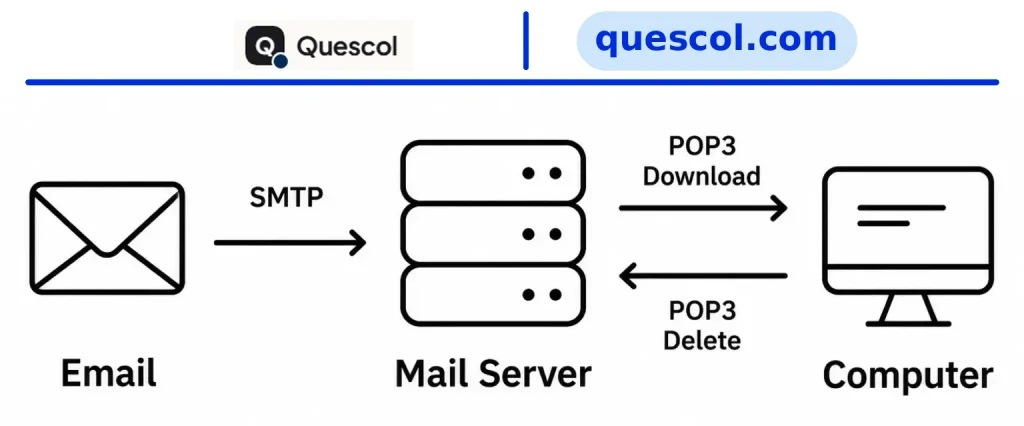
Figure: E-mail
Importance of E-Mail
Email plays an important role in personal, educational, and professional communication. It allows individuals to exchange information, share important documents, receive notifications, and maintain records of conversations.
For example, companies use email to communicate with employees and customers, educational institutions use it to distribute assignments and examination notifications, and individuals use it for personal communication and online registrations.
Email also supports features such as replying, forwarding, attaching files, organizing messages, and filtering unwanted emails. These features make communication more convenient and help users manage large numbers of messages.
Therefore, email is an essential application-layer service in computer networks that provides a fast, convenient, and cost-effective way to exchange digital messages and information across the world.
Basic Functions of an E-Mail System
1. Composition of Messages
Message composition is the process of creating a new email message. It allows users to write the required information and prepare it for sending to one or more recipients.
While composing an email, the user can enter the recipient’s email address, add a subject, write the message, and format the text according to their requirements. Users can also include attachments such as documents, images, and other files.
An email message generally contains the following fields:
- To: Specifies the primary recipient’s email address.
- CC (Carbon Copy): Sends a copy of the email to additional recipients.
- BCC (Blind Carbon Copy): Sends a copy to other recipients without revealing their email addresses to the other recipients.
- Subject: Specifies the main topic or purpose of the email.
- Message Body: Contains the actual information or content of the email.
Example: A student can compose an email to a teacher with the subject “Assignment Submission” and include the assignment details in the message body.
2. Transfer of Messages
Message transfer refers to the process of sending an email from the sender’s computer or device to the recipient through mail servers.
When the sender clicks the Send button, the email application transfers the message to the outgoing mail server using SMTP (Simple Mail Transfer Protocol). The sender’s mail server then identifies the recipient’s mail server and transfers the message through the internet.
The recipient’s mail server stores the message in the recipient’s mailbox until it is accessed.
Example: When a user sends an email through Gmail to another person, SMTP helps transfer the message between the sender’s and recipient’s mail servers.
3. Reading Messages
The reading function allows users to open, view, and understand the email messages received in their inbox.
Users can view the sender’s name, email address, subject, date, and message content. They can also open attachments to read documents, view images, or access other shared information.
Email applications provide options to mark messages as read or unread, helping users identify messages that still need attention.
Example: An employee can open an email received from a manager to read important instructions about a project or meeting.
4. Replying to Messages
The reply function allows users to respond directly to an email they have received. Instead of creating a completely new message, users can select the Reply option and send their response to the original sender.
The reply usually includes the original subject and maintains the conversation history, making it easier to understand previous communication.
Users can also use the Reply All option to send their response to the original sender and other recipients included in the conversation.
Example: A student receives an email from a teacher asking for confirmation of assignment submission. The student can use the Reply option to confirm that the assignment has been submitted.
5. Forwarding Messages
The forwarding function allows users to send an already received email to another person or group of people.
It helps users share important information without having to compose the entire message again. The forwarded email generally includes the original message content and sender details.
Users can also add their own comments or explanations before forwarding the message.
Example: An employee receives an important meeting notification from a manager and forwards it to other team members so that everyone is informed about the meeting schedule.
6. Attachment of Files
The attachment function allows users to send additional files along with an email message. These files may include documents, images, spreadsheets, presentations, audio files, and videos.
It makes email communication more useful because users can share information in different formats instead of sending only text messages.
Most email services provide an attachment option to select files from a computer, smartphone, or cloud storage service.
Example: A student can attach a PDF document containing an assignment and send it to a teacher through email.
7. Mailbox Management
Mailbox management refers to organizing and maintaining email messages in an email account. It helps users manage large numbers of messages and find important information easily.
Email systems provide different options for managing messages, such as creating folders, moving emails, deleting unwanted messages, archiving important emails, and marking messages as important.
Users can also search for specific messages using keywords, sender names, or subject lines.
Example: An employee can create separate folders for project-related emails, customer communication, and official notifications to keep the inbox organized.
8. Address Book Management
The address book function allows users to store and manage the email addresses and contact details of other people.
It helps users send emails without repeatedly entering the recipient’s email address. Users can save names, email addresses, phone numbers, and other contact information.
When composing a new email, users can select a saved contact directly from the address book.
Example: A student can save the email addresses of teachers, classmates, and college administrators in the contact list for future communication.
9. Deleting and Saving Messages
An email system allows users to delete unwanted messages and save important emails for future reference.
When a user deletes an email, it is generally moved to the Trash or Deleted Items folder. Depending on the email service, deleted messages may be recovered within a limited period.
Users can also archive emails to remove them from the inbox without permanently deleting them. Important messages can be kept in separate folders for easy access.
Example: A user can delete unnecessary promotional emails while archiving important emails containing job interview details or official information.
10. Email Notification
The notification function informs users whenever new email messages arrive in their inbox.
Email applications can display notifications on computers, smartphones, and tablets. These notifications may include the sender’s name, subject, and a short preview of the message.
This function helps users identify important emails and respond to them without repeatedly checking their inbox.
Example: When a student receives an email regarding an examination schedule, the email application can immediately display a notification on the student’s smartphone.
11. Searching Messages
The search function allows users to find specific emails from their inbox or other folders without manually checking every message.
Users can search for emails using keywords, sender names, recipient addresses, subject lines, and dates. Some email services also provide advanced search filters to narrow down the results.
This function is especially useful for users who receive a large number of emails every day.
Example: An employee can search for emails containing the keyword “Project Report” to find previously shared project information.
12. Spam Filtering
Spam filtering is a function that identifies unwanted, suspicious, or potentially harmful email messages and separates them from normal inbox messages.
Email systems use filtering rules and security techniques to detect spam messages, phishing attempts, and suspicious attachments. Such messages are generally moved to the Spam or Junk folder.
This function helps protect users from unwanted messages and certain email-based security threats.
Example: An email containing suspicious promotional links may automatically be identified as spam and moved to the Junk folder.
Conclusion
An email system supports several basic functions, including message composition, transfer, reading, replying, forwarding, file attachment, mailbox management, and contact management. It also provides additional features such as message searching, notifications, and spam filtering.
These functions make email communication simple, organized, and efficient. Therefore, email systems play an important role in personal communication, education, and business activities by allowing users to exchange and manage information electronically.