Computer networks and internet communication depend on proper connectivity between devices and servers. Therefore, network administrators use different tools to check whether systems are reachable and working correctly. One of the simplest and most important network diagnostic tools is PING.
Moreover, PING helps users test internet connections, identify network problems, and measure round-trip time between devices. It plays a major role in troubleshooting networking issues and monitoring connectivity performance. Therefore, PING is widely used in networking, server management, and internet communication systems.
What is PING?
Ping is a basic Internet command used in computer network administration to test and verify the availability of a destination IP address. It helps users confirm whether the computer they are trying to reach is operational. Ping works by measuring the communication latency which is the time taken for data to travel between two devices or across a network. As communication latency decreases, the effectiveness of communication improves and hence makes it an essential tool for network troubleshooting. It can be used with any operating system (OS) that supports networking.
Features of PING
- Tests Network Connectivity – PING checks whether a device, server, or website is reachable over a network or the internet.
- Uses ICMP Protocol – PING works using ICMP (Internet Control Message Protocol) Echo Request and Echo Reply messages for communication testing.
- Measures Response Time – It calculates the Round Trip Time (RTT), which shows how long data packets take to travel to the destination and return.
- Detects Packet Loss – PING identifies whether packets are lost during communication, which helps detect unstable network connections.
- Simple and Easy to Use – PING commands are simple to execute from the command prompt or terminal in most operating systems.
- Supports Troubleshooting – Network administrators use PING to diagnose internet connectivity issues, server problems, and network delays.
Working of PING
The working of PING involves sending and receiving ICMP (Internet Control Message Protocol) packets between two devices over a network. It helps determine whether communication between systems is active and functioning properly. Moreover, PING measures response time, detects packet loss, and checks network reliability. Therefore, it is one of the most important tools used in network troubleshooting and internet connectivity testing.
When a user executes a PING command, the computer sends ICMP Echo Request packets to the target system. Then, the destination device replies with ICMP Echo Reply packets if the connection is successful. As a result, the source computer analyzes the responses and displays network statistics such as response time and packet loss.
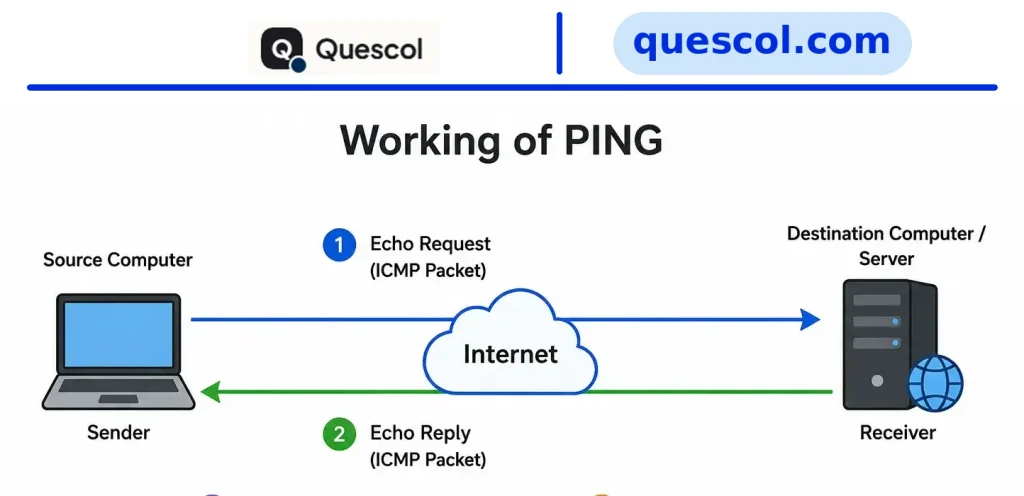
Figure: Working of PING
Following are the steps in the working of PING
1. User Executes the PING Command
The process starts when the user enters a PING command in the command prompt or terminal window. The command includes the domain name or IP address of the target system. Moreover, the operating system prepares ICMP packets for transmission through the network. Therefore, this step initiates the connectivity testing process.
2. DNS Resolution
If the user enters a domain name instead of an IP address, the system first performs DNS resolution. DNS converts the domain name into its corresponding IP address before the PING process continues. Furthermore, DNS resolution ensures that the packets are sent to the correct destination server. Therefore, domain-based PING commands work properly.
3. Sending ICMP Echo Request
After resolving the destination address, the source computer sends ICMP Echo Request packets to the target device or server. These packets contain small amounts of data used for testing communication. Moreover, routers and network devices forward the packets through different network paths until they reach the destination. Therefore, the request packet travels across the network infrastructure.
4. Packet Travels Through the Network
The ICMP packet passes through switches, routers, gateways, and internet service providers before reaching the destination system. Each networking device forwards the packet toward the correct route. Furthermore, the travel path may vary depending on network conditions and routing tables. Therefore, network congestion or routing issues can affect PING performance.
5. Receiving ICMP Echo Reply
If the target system is active and reachable, it receives the ICMP Echo Request and responds with an ICMP Echo Reply packet. This confirms successful communication between the source and destination devices.
Moreover, the reply packet travels back through the network to the source computer. Therefore, the source system knows that the destination is available.
6. Measuring Round Trip Time (RTT)
PING calculates the time required for the packet to travel from the source to the destination and back again. This value is called Round Trip Time (RTT), and it is usually measured in milliseconds (ms).
Furthermore, RTT helps users evaluate network speed and latency. Lower RTT values indicate faster network communication.
7. Detecting Packet Loss
PING checks whether all packets sent to the destination return successfully. If some packets do not return, packet loss occurs. Packet loss may indicate weak connectivity, network congestion, or hardware problems.
Moreover, higher packet loss affects internet performance, video streaming, and online gaming quality. Therefore, packet loss detection helps identify unstable network connections.
8. Displaying PING Statistics
Finally, the PING utility displays detailed statistics such as packets sent, packets received, packet loss percentage, and average response time. These results help users analyze network performance and connectivity status.
In addition, administrators use these statistics to troubleshoot internet and server-related problems efficiently. Therefore, PING results provide valuable network diagnostic information.
For example,
The command prompt may display:
- Packets Sent = 4
- Packets Received = 4
- Packet Loss = 0%
- Average Response Time = 18 ms
Difference Between Successful and Failed PING
| S.No | Successful PING | Failed PING |
|---|---|---|
| 1 | Receives Echo Reply packets | Does not receive reply packets |
| 2 | Indicates active network connection | Indicates connectivity problem |
| 3 | Shows response time information | Shows timeout or unreachable error |
| 4 | No packet loss or minimal loss | High packet loss or complete loss |
| 5 | Confirms reachable destination | Confirms unreachable destination |
How to Check the Ping Value of Any Website from Your Server?
Checking the ping value of a website helps users measure network response time and verify internet connectivity. Moreover, it helps identify network delays, packet loss, and server reachability. Therefore, PING is commonly used for troubleshooting internet and network problems.
To check the ping value of any website, users need to use the Command Prompt in Windows or the Terminal application in Mac/Linux systems. The system then sends ICMP Echo Request packets to the target website and waits for a reply. As a result, users can view response time statistics and connection status.
Following are the steps to check Ping Value:-
1. Open Command Prompt or Terminal
- In Windows, press Win + R, type cmd, and press Enter.
- In Mac/Linux, open the Terminal application.
This opens the command-line interface used for network commands.
2. Enter the PING Command
Type the following command:
ping [website name]Replace [website name] with the domain name or IP address of the website you want to test.
Example:
ping youtube.com3. Press Enter
After pressing Enter, the computer sends ICMP Echo Request packets to the target website. Then, the website server responds with ICMP Echo Reply packets if the connection is successful.
4. View the Results
The system displays:
- Number of packets sent and received
- Packet loss percentage
- Minimum response time
- Maximum response time
- Average Round Trip Time (RTT)
These values help users analyze network performance and connection quality.
Understanding the Ping Result
If the response time is low, the network connection is fast and stable. However, higher response times indicate network delay or congestion. Similarly, packet loss may indicate weak internet connectivity or server issues.
By default, Windows sends four ping requests to the target server. Then, the system calculates the minimum, maximum, and average RTT values in milliseconds (ms). Therefore, users can easily evaluate network speed and server responsiveness.
Role of PING in Speed Tests
- Measures Network Latency – PING measures the time taken for data packets to travel from the user’s device to the server and back again. This time is called latency or Round Trip Time (RTT). Lower latency indicates a faster and more responsive internet connection.
- Checks Internet Responsiveness – PING helps determine how quickly the internet connection responds to requests. Faster response time improves communication between devices and servers. Therefore, websites and online services work more smoothly.
- Important for Real-Time Applications – Low ping is very important for applications such as online gaming, video conferencing, and live streaming. High ping can cause lag, delays, and poor communication quality during real-time activities.
- Detects Network Delays – PING identifies network congestion and communication delays. If the response time becomes too high, it may indicate weak internet connectivity or heavy network traffic.
- Complements Download and Upload Speed Tests – Speed tests measure download and upload speeds, while PING measures connection responsiveness. Together, these values provide a complete analysis of internet performance.
- Helps Compare Internet Connections – PING allows users to compare different internet connections based on response time and stability. Therefore, users can choose the best network according to their activities.
- Improves Troubleshooting – Network administrators use PING to identify connectivity issues, packet loss, and unstable communication. As a result, troubleshooting becomes faster and more effective.
- Measures Server Reachability – PING checks whether a website, server, or network device is active and reachable. Therefore, it helps verify successful communication between systems.
For example,
- Gaming Connection – Gamers usually prefer lower ping because it provides faster response and smoother gameplay without lag.
- Video Streaming and Downloading – Users downloading large files may prefer higher internet speed even if the ping value is slightly higher.
- Video Calls – Low ping improves video and audio synchronization during online meetings and video conferencing.
- Online Communication – High ping may cause delays, buffering, and interruption during live communication and streaming.
How to Use PING in Troubleshooting?
PING is a useful network troubleshooting tool that helps identify connectivity issues, latency problems, and network failures. It checks whether a device, server, or website is reachable over the network. Moreover, it helps administrators analyze response time and packet loss. Therefore, PING is widely used for diagnosing internet and network-related problems.
- Detects Connection Failure – If the ICMP Echo Request does not receive a reply and shows a timeout message, it usually indicates network configuration problems, server issues, or communication failure between devices.
- Identifies Network Congestion – Delayed Echo Reply packets often indicate network congestion, high traffic, or slow internet connectivity. Therefore, administrators can identify performance problems quickly.
- Measures Round Trip Time (RTT) – PING calculates the time taken for packets to travel to the destination and return back. High RTT values usually indicate latency or slow network performance.
- Checks Packet Loss – If some packets fail to return, packet loss occurs. This may indicate weak internet connections, faulty hardware, or unstable network communication.
- Tests Local Network Connectivity – Administrators often ping the IPv4 loopback address (
127.0.0.1) to check whether the local TCP/IP stack is functioning correctly. - Verifies Gateway Communication – Pinging the default gateway helps determine whether the local device can communicate properly with the router or network gateway.
- Helps Diagnose Internet Problems – By pinging websites or external servers, users can determine whether internet connectivity problems exist beyond the local network.
Advantages of PING
1. Easy Network Troubleshooting
PING quickly checks whether a network device, server, or website is reachable through the internet or local network. Therefore, administrators can easily identify connectivity problems and communication failures. Moreover, it helps reduce troubleshooting time by providing immediate network status information.
2. Measures Round-Trip Latency
PING measures the round-trip time between the source and destination for its ICMP probes; it does not measure link bandwidth or download/upload throughput. As a result, users can analyze network latency and connection responsiveness. Furthermore, lower response times usually indicate faster and more stable network communication.
3. Detects Packet Loss
PING identifies whether data packets are successfully transmitted and received between devices. Packet loss may indicate unstable internet connectivity, weak wireless signals, or network congestion. Therefore, PING helps users detect communication problems efficiently.
4. Simple and Fast Utility
PING commands are simple to use and provide quick results within a few seconds. Moreover, most operating systems include built-in PING support, so users do not need additional software. Therefore, it is one of the easiest network testing tools available.
5. Supports Network Monitoring
Network administrators use PING to continuously monitor servers, routers, and network devices. This helps ensure that systems remain online, accessible, and responsive. Moreover, regular monitoring helps detect downtime and performance issues quickly.
Disadvantages of PING
1. Limited Information
PING mainly checks connectivity and response time between devices. However, it does not provide detailed information about routing paths, bandwidth usage, or advanced network configurations. Therefore, administrators may need additional tools for complete network analysis.
2. Can Be Blocked
Some servers, routers, and firewalls block ICMP packets for security purposes. As a result, PING requests may fail even if the target system is active and functioning properly. Therefore, failed PING results do not always indicate server failure.
3. Security Risks
Attackers may misuse PING for network scanning and identifying active devices on a network. This information can help attackers perform further cyberattacks or unauthorized access attempts. Therefore, organizations often limit ICMP traffic for better security.
4. Does Not Measure Full Network Performance
PING mainly measures latency and packet loss during communication. However, it does not fully analyze download speed, upload speed, bandwidth, or application-level performance. Therefore, PING alone cannot provide complete network performance information.
Applications of PING
1. Network Troubleshooting
PING helps identify communication problems between computers, servers, and network devices. Therefore, administrators use it to diagnose internet connectivity issues and verify whether remote systems are reachable. Moreover, it helps reduce troubleshooting time significantly.
2. Server Monitoring
Administrators use PING to monitor whether servers remain online and responsive continuously. This helps ensure stable website and network service availability. Furthermore, it allows quick detection of server downtime or connectivity failures.
3. Network Performance Testing
PING measures response time and packet loss to evaluate network quality and stability. Therefore, users can analyze latency, detect network congestion, and monitor communication performance effectively. Moreover, it helps maintain reliable internet connectivity.
4. Router and Device Testing
PING tests communication between routers, switches, printers, and other network devices. Therefore, administrators can verify proper connectivity and device functionality within the network infrastructure. In addition, it helps identify hardware and communication issues quickly.
Conclusion
PING is an important network utility tool used to test connectivity, measure response time, and detect packet loss between devices. It works using ICMP Echo Request and Echo Reply messages to verify whether communication between systems is functioning properly.
Moreover, PING helps network administrators troubleshoot connectivity issues, monitor servers, and evaluate network performance efficiently. Although it has some limitations such as limited diagnostic information and firewall restrictions, it still remains one of the most widely used networking tools. Therefore, PING is essential for maintaining reliable network communication and internet connectivity.